
Integration
ImpactPilot in your AI assistant
Connect ImpactPilot to HubSpot
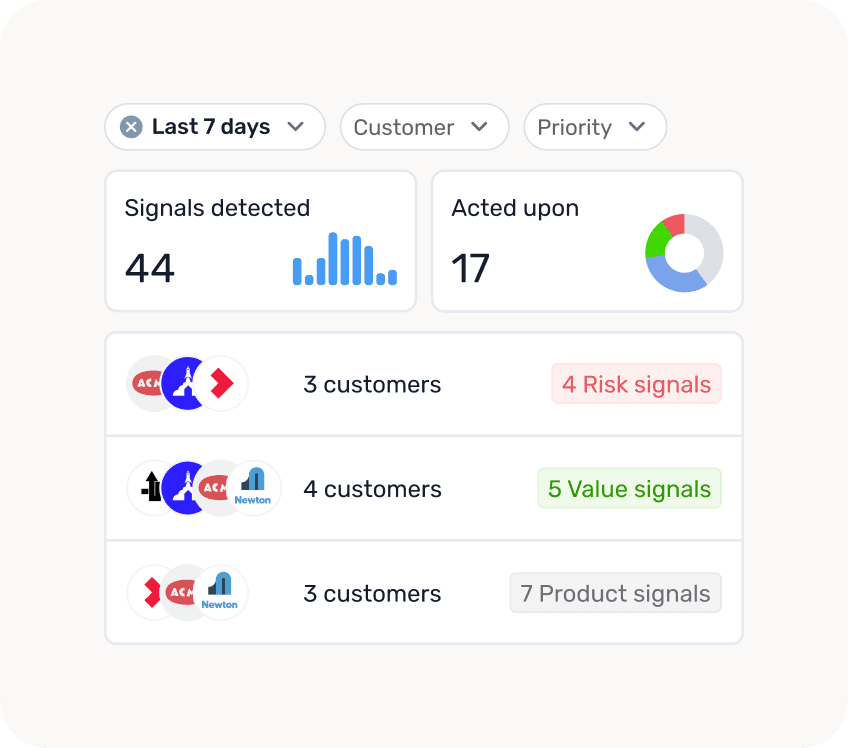

1. What this gives you
Once connected, your AI assistant can look things up in ImpactPilot for you and answer questions like:
“What signals do I have open right now?”
“Show me everything for Acme Corp.”
“Which of my accounts have risk signals this week?”
“Which CSM has the most open signals?”
“Which of my customers have earned the fewest impact points?”
“Which impact drivers do we complete most often?”
“Write me a summary of this week’s signals for the team update.”
Everything it shows you is the same data you see in the Signals page of ImpactPilot, and it only ever sees what your own ImpactPilot account is allowedto see. If you only see your own accounts in the app, the assistant only sees those too.
Each signal it lists comes with a link that takes you straight to that signal in ImpactPilot, so you can always check the full details.
2. Before you start
You need:
An ImpactPilot account that you can log into normally.
An AI assistant that supports connectors. Claude is the recommended one. This works in the Claude desktop app and on claude.ai in your browser. A paid Claude plan is generally required for custom connectors.
3. Set it up in Claude
Step by step
Open Claude — either the desktop app or claude.ai in your browser.
Click your name or profile picture in the bottom-left corner, then choose Settings.
Open the Connectors section.
Click Add custom connector (you may need to scroll to the bottom of the list of existing connectors).
Fill in the two fields:
Name:
ImpactPilotURL:
https://mcp.impactpilot.io/mcp
Click Add.
Signing in
Claude will now open an ImpactPilot login window in your browser.
Log in the way you normally log into ImpactPilot (through HubSpot).If you are already logged in, you will skip straight past this.
ImpactPilot will ask whether you want to give Claude access to your signals. Click Approve (or Allow).
The window closes and returns you to Claude. The ImpactPilot connector should now show as Connected.
That’s it. You do not have to repeat this — Claude remembers the connection.
Check that it worked
Start a new chat and type:
Using ImpactPilot, who am I?
Claude should reply with your name, your email and your organisation. The first time it uses the connector it may ask for your permission to do so — allow it. You can tick the option to allow it for the rest of the conversation so you are not asked again for every question.
4. Using it day to day
Just ask normally. You don’t need special commands. It helps to mention “ImpactPilot” in your first question of a conversation so the assistant knows where to look.
Good starting questions:
What you want | What to ask |
|---|---|
Your open signals | “Show me my open ImpactPilot signals.” |
One customer | “What’s going on with Acme Corp in ImpactPilot?” |
Only risks | “Any risk signals across my accounts this week?” |
A team overview | “In ImpactPilot, how many open signals does each CSM have?” |
Accounts that need attention | “Which of my customers have the fewest impact points?” |
A written summary | “Summarise my open ImpactPilot signals into a short weekly update.” |
Follow-up questions work too. After it lists signals you can say “tell me more about the second one” or “now show me just the high priority ones” without repeating yourself.
Filters it understands: time ranges (“in the last two weeks”), priority (“high priority only”), category (Risk, Opportunity, Info), account owner (“mine”, or a colleague’s name), and whether to include already-resolved signals (“including resolved ones”).
5. Good to know
It only reads. Nothing the assistant does can change your signals or anyother data in ImpactPilot.
Long lists get shortened. If you ask a very broad question, the assistant may only read the first 25 signals in detail. For big questions, prefer counting questions (“how many per customer”) over “list everything”.
Always sanity-check numbers you’ll report onward. The assistant reads real data, but it writes the summary itself. Use the signal links to verify anything important before sending it to a customer or your leadership.
6. If something goes wrong
“Claude doesn’t seem to know about ImpactPilot.” Open Settings → Connectors and check that ImpactPilot shows as connected. Also make sure the connector is enabled for the chat you’re in — in some versions there is a tools or connector icon near the message box where you can switch it on.
“It says it isn’t authenticated / asks me to log in again.” Your login session expired. Go to Settings → Connectors, click ImpactPilot, and choose Reconnect (or remove it and add it again). You’ll go through the same approve screen as during setup.
“The login window opened but nothing happened.” Make sure your browser isn’t blocking pop-ups for Claude, then try connecting again.
“It can’t find a customer I know exists.” Try the exact name as it appears in ImpactPilot. Partial names usually work, but nicknames and abbreviations may not. If you know the customer’s HubSpot record id, you can give that instead.
“It says there are no signals but I can see some in the app.” By default it only looks at open (unresolved) signals from your own accounts. Ask again with “including resolved ones”, or “across the whole organisation” ifyou have permission to see that.
Still stuck? Contact your ImpactPilot support, and mention which step of this guide failed and what the error message said.
7. Other AI assistants
The connector uses an open standard called MCP (Model Context Protocol), so other assistants that support custom MCP connectors can use it too — the address to give them is the same https://mcp.impactpilot.io/mcp. The exact menus differ per product, and support outside Claude varies, so check that product’s own documentation for where to add a custom connector.
